
What are Line Attributes?
Line Attributes in QuoteWerks are settings that control how individual quote items are displayed, calculated, and presented to customers. They enable users to create optional items, hide prices or quantities, manage recurring revenue, apply tax rules, and customize the customer-facing quote experience without changing the underlying product information. These attributes provide flexibility in building professional, dynamic quotes that meet a variety of sales scenarios.
How to Set Line Attributes
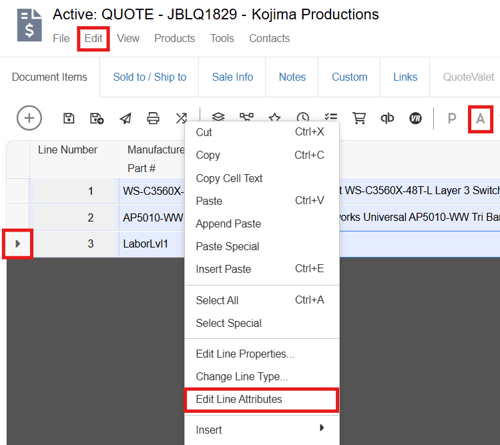
There are multiple ways to access the line attributes window in QuoteWerks. You can select a single line or multiple lines by clicking on the lines you wish to edit the line attributes for while holding the Shift or Ctrl keys.
- Select the line(s) and click on the "A" icon on the grid toolbar
- Select the line(s), right click, and select Edit Line Attributes
- Select the line(s) and use the Ctrl+R shortcut
- Select the lines(s), open the edit menu and click on Edit Line Attributes
- Double click on a lines record selector
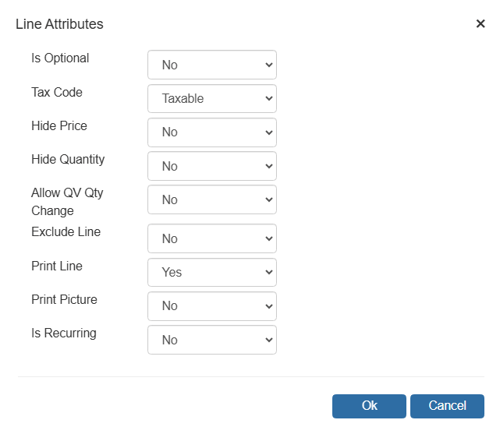
Using any of the methods outlined above will open the Edit Line Attributes window as seen below. In this image you can see the default line attributes for any line that is added to a quote.
Is Optional
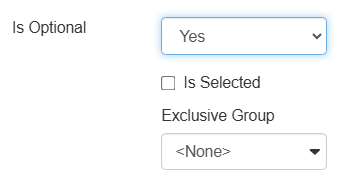
Selecting Is Optional marks an item as optional, so it appears on the quote but is not included in the total unless selected in QuoteValet. This is useful for presenting add-ons, upgrades, or "good, better, best" options. Selecting Is Selected will make the option selected by default and will include the line in the quote's totals. Giving the Exclusive Group a name when multiple items are selected will make it so that the customer will have to select only one of the options that are a part of that exclusive group.

Tax Code
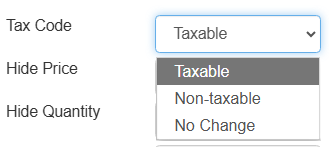
Setting the Tax Code determines whether sales tax is calculated for that specific line item. Setting the line to taxable will change the tax code column to "Y", calculate the item's taxable amount based on the configured tax rate and add it to the document totals.
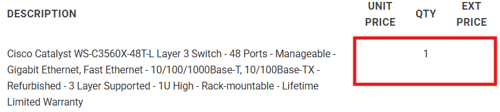
Hide Price
Setting Hide Price to Yes displays the item without showing its price while still including the amount in the quote calculations.
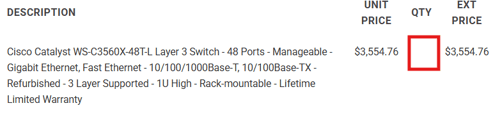
Hide Quantity
Setting Hide Quantity to Yes suppresses the quantity from the printed quote or QuoteValet presentation.
Allow QV Quantity Change
Setting Allow QV Quantity Change to Yes will allow customers to change the quantity of the item(s) on QuoteValet. If a customer makes a change to the quantity of an item the quote's totals adjust to reflect the change.

Exclude Line
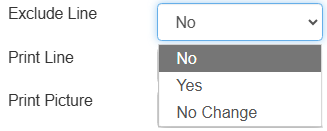
Setting Exclude Line to Yes removes the item from both calculations and printed output while keeping it in the quote for future use. This is useful if you want the line to be included on the Quote Workbook for reference purposes but do not want it to be included in totals or printed outputs. This is often kept as No to ensure the line prints and is included in calculations. If you do not want a line to print, but still have it included in document totals you should use the Print Line attribute instead.
Print Line
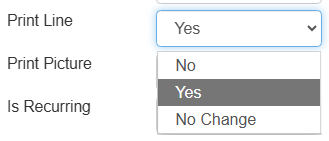
Print Line controls whether a line item appears on the customer-facing quote while still affecting totals. By default this is set to Yes. Setting this attribute to No is useful if you want an item to appear on the Quote Workbook and be included in the quote's totals, but have it not appear as a line on the PDF or QuoteValet output to the customer.
Print Picture
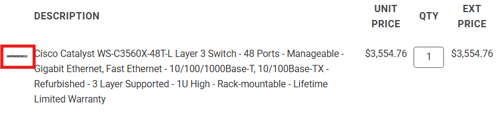
Setting Print Picture to Yes displays a product image on the quote if one is associated with the item.
Is Recurring
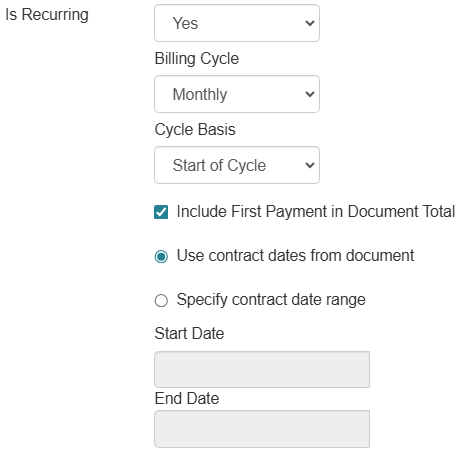
Setting Is Recurring to Yes identifies an item as recurring revenue (monthly, quarterly, annual, etc.) and supports billing cycles, contract dates, and recurring revenue reporting. If you set Is Recurring to Yes, you can set the billing cycle, cycle basis, determine if you want the items recurring cost to be included in the document total, and specify the contract date range.
Summary
Line Attributes are one of the most powerful yet often underutilized features in QuoteWerks. By giving users greater control over how individual line items are displayed, calculated, and presented, Line Attributes help create more flexible, professional, and customer-friendly quotes. Whether you're offering optional products, managing recurring services, hiding pricing details, or tailoring proposals to specific customer needs, Line Attributes can streamline your quoting process and enhance the overall customer experience. Taking the time to understand and leverage these settings can help your team build more accurate quotes, improve sales efficiency, and deliver polished proposals that support faster decision-making and increased sales success.
If you have any questions, call us at 407-248-1481 to speak with one of our representatives today, available 9AM-5PM Eastern, Monday through Friday. You can also email us at sales@quotewerks.com or contact your QuoteWerks Reseller.
For international customers and technical support, click here.